

Creating a branch
Right-click the commit to use as the base and choose Create branch…. Enter a Branch name and click Create. The Checkout after creating toggle is on by default.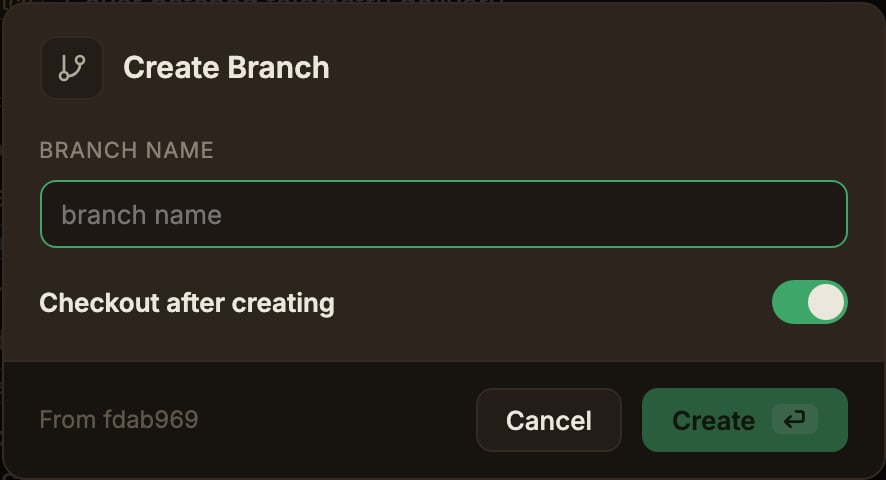
Renaming a branch
Right-click a commit with a branch badge and choose Rename… from that branch’s submenu. The input field is pre-filled with the current name, and if the branch is pushed to a remote, an Also rename on origin toggle appears (off by default). The label names the remotes the branch is on. With two of them it reads Also rename on origin, upstream.- You can rename the branch you currently have checked out.
- Renaming on the remote follows the sequence “push the new name → delete the old name on success”.
- Remote-only branches can’t be renamed.
Setting a tracking branch
Choose Set tracking branch… to pick which remote branch a local branch tracks. It’s in the branch submenu in the graph and on the Local Branches rows of the Repository panel, and it works on the branch you currently have checked out too.- Branch is the branch being changed, shown read-only.
- Tracking branch is a searchable list of every remote branch in the repository. Pick No tracking branch to clear the setting.
Only the git config changes. No commits move and no working tree files change.
It isn’t recorded in Undo, and you reverse it by reopening the same dialog.
Creating a pull request
Choose Create pull request… from the branch submenu to open a GitHub pull request with that branch as the head. The entry appears only for repositories with a github.com remote. Pull requests covers the dialog.Deleting a branch
Choose Delete from the branch submenu. The Also delete on origin toggle in the confirmation modal also deletes the branch on the remotes its label names.Cleaning up branches
Delete local branches already merged into a base branch, all at once. Open it from Clean up merged branches in the Cleanup menu on the top bar (it only appears in the main worktree).1
Check the base branch
Compare against defaults to the repository’s default branch, falling back to the branch you have checked out, and you can switch it to another local branch from the dropdown.
If HEAD is detached and no default can be resolved, Pick a base branch to compare against. appears instead.
2
Pick the targets
Candidates are listed by name with a short SHA and a Merged badge, all selected to begin with.
Clear them one at a time with the checkboxes, or flip them all with Select all.
3
Delete
Click Delete and the selected branches are deleted one after another.
A failure on one doesn’t stop the rest; a toast reports how many were deleted and which ones failed.
- the base branch itself, or the branch you have checked out
- checked out in another worktree: Git refuses to delete those
- not merged into the base branch: a branch counts as merged only when its tip is the base branch’s tip or an ancestor of it
The merge check runs entirely on the local commit graph. It works in repositories without a remote.
It also deletes local branches only. Remote branches are left alone.
You can reverse a cleanup in one step with Undo.