

PRO only. Commit signing is a ParalleLane Pro feature.
On Basic, the Signing method heading carries the PRO badge, and selecting SSH or GPG shows an upgrade prompt.
See Plans for plan differences.
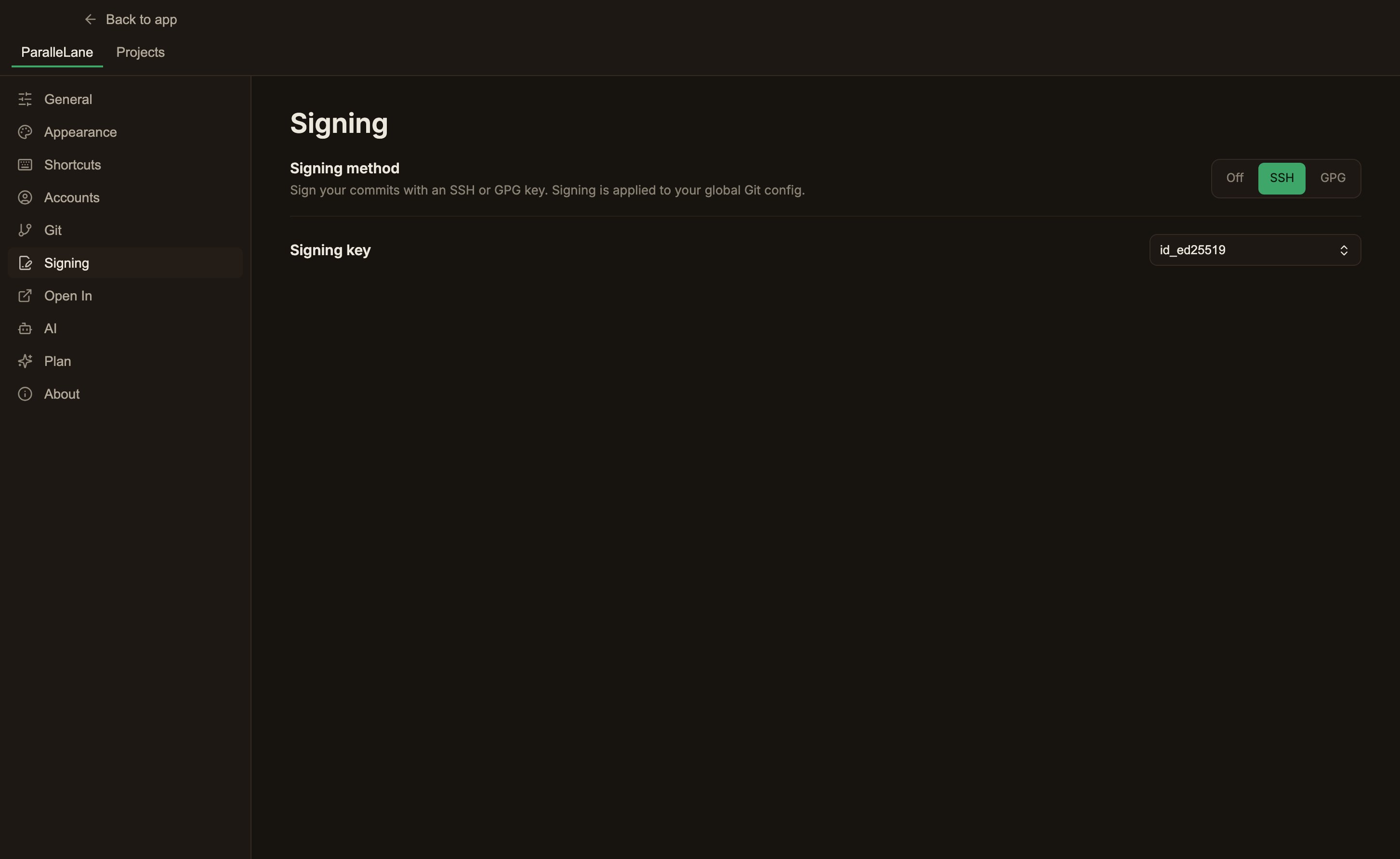
Global signing settings
In Settings → ParalleLane → Signing, choose a Signing method (Off, SSH, or GPG) and select a signing key. The key takes effect in the global Git signing configuration as soon as you select it.- SSH
- GPG
Pick a public key found in
~/.ssh.
It uses the public key path as user.signingkey and sets gpg.format=ssh and commit.gpgsign=true.
You can choose the same key used for host authentication, but the signing key is not tied to any account.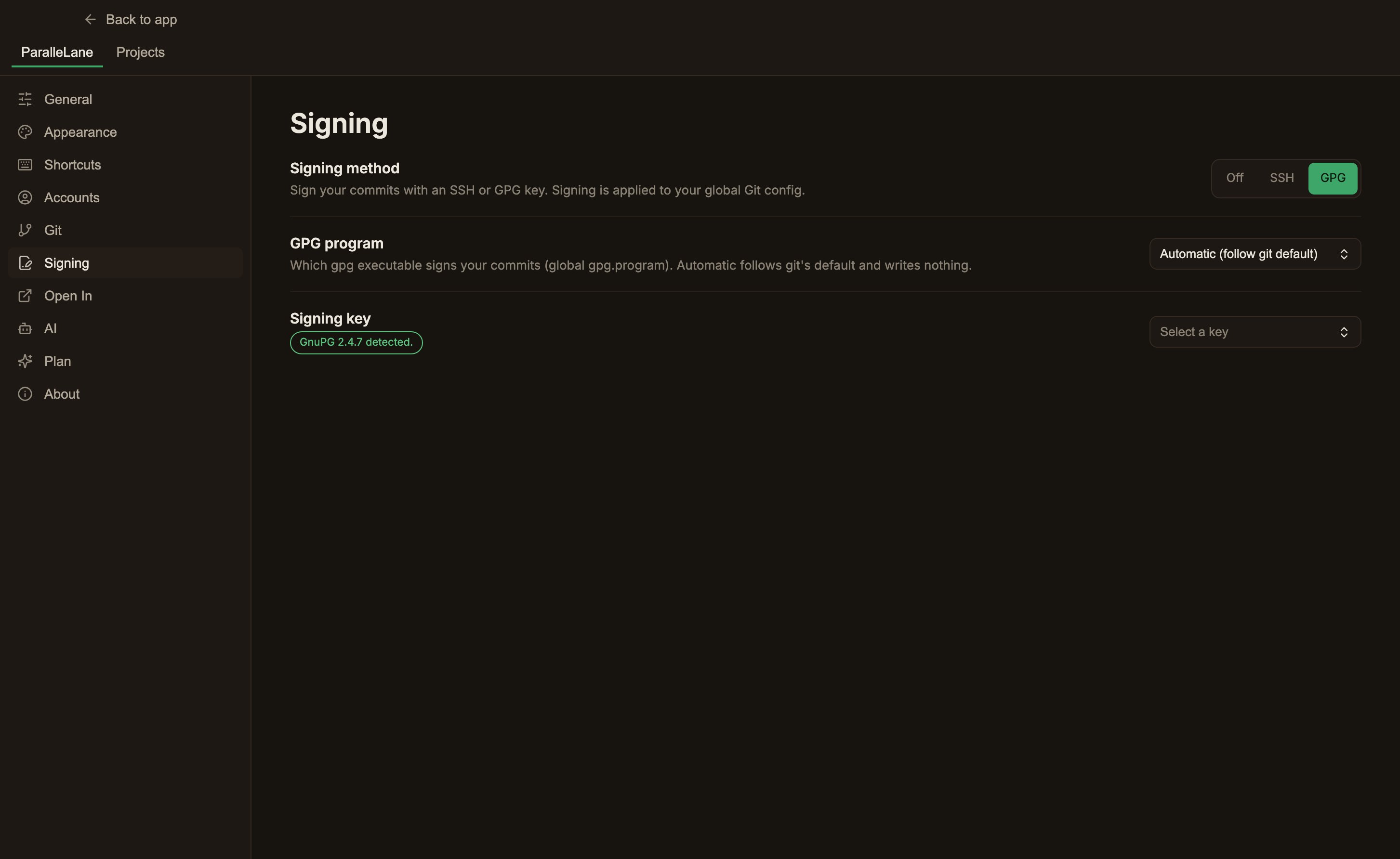
Selecting Off turns off the automatic signing configuration ParalleLane manages.
Selecting it again applies signing to commits and amends you make afterward.
Setting it per repository
Set the repository’s rule in Settings → Projects → Signing.Use global setting
Uses the global method and key as-is, and the screen shows a
Global: … summary.Override for this repo
Sets a separate method and key in the repository’s local Git configuration.
Checking a signed commit
Selecting a commit that has signature data adds a SIGNATURE row after PARENTS in the commit details on the right, showingSigned with SSH or Signed with GPG.
In the graph, too, a green check badge appears to the left of the author’s name.
This indicator only tells you the signature data and method embedded in the commit. It is not a full verification of key trust or the host’s Verified status.