

Amend: editing the last commit
Absorb changes into the HEAD commit or change its message, without creating a new commit.1
Turn on Amend mode
Turn on the Amend last commit checkbox in the Working copy panel.
You can also right-click the HEAD commit in the graph and choose Amend commit.
2
Adjust which files are included
The files from the target commit (HEAD) appear in the Staged section.
Unstage a file to leave it out of the amend, and stage a new change to include it.
The Summary and Description fields are pre-filled with the existing message.
3
Click Amend
The Commit button becomes Amend.
You can run it to fix only the message, even with no newly staged changes.
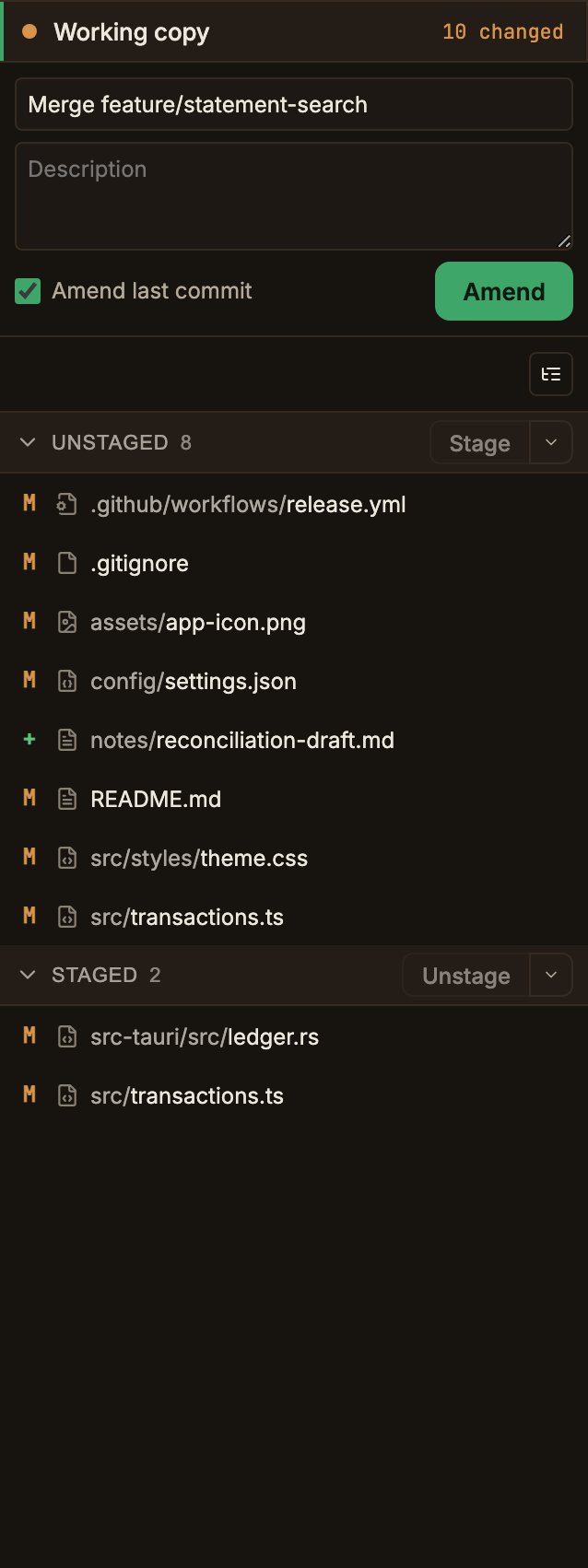
The Amend checkbox is disabled before the first commit, or while a merge, rebase, cherry-pick, or revert is in progress.
Squash: combining several commits
You can only squash a consecutive range that includes HEAD (the tip of the branch).1
Select several commits
Select the commits to combine in the graph.
2
Open the squash menu
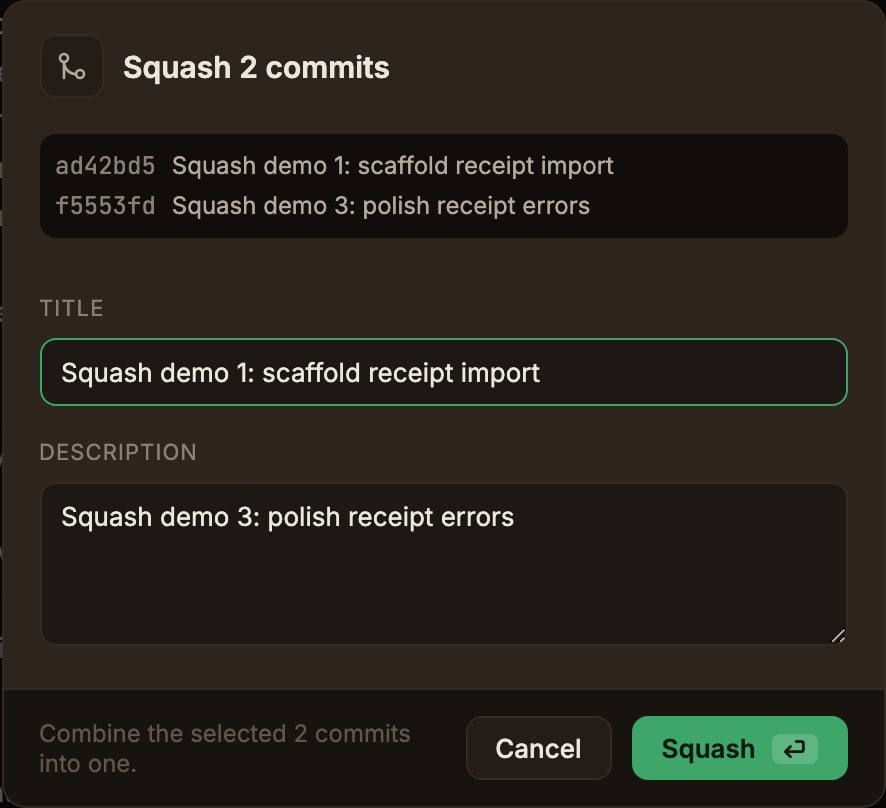
Right-click a commit inside the selection and choose Squash N commits… at the top.
3
Write the combined message
Title is pre-filled with the oldest commit’s summary, and Description with the summaries of the rest, oldest first.
Clean it up, then click Squash.
When you edit commits you already pushed
Amend and Squash rewrite local history. If a commit you already pushed is affected, local and remote diverge and the next push needs a force-push.Right after you run them, Amend and Squash are targets for Undo.
A soft reset is applied. The changes that were in the commit stay staged.
See Discard & undo.