

What is a worktree?
git worktree lets a single repository (sharing one .git history) hold several working trees, each folder checked out to a different branch at the same time.
You don’t need to commit or stash your changes every time you switch branches.
The working tree you get when you first open a repository is the main worktree; additional folders you create are linked worktrees.
All worktrees share the commit history and branches, but each has its own checked-out branch and its own working changes.
When is this useful?
Code review
Build and run a colleague’s branch in a separate folder without touching the branch you’re working on.
Urgent hotfix
Work on a
main-based hotfix in a new worktree without stashing, then return to your original work.Parallel work
Work on several features, each in its own folder.
Build artifacts stay separate.
Long-running comparisons
Keep working in another worktree while tests run on a different branch.
How does ParalleLane handle worktrees?
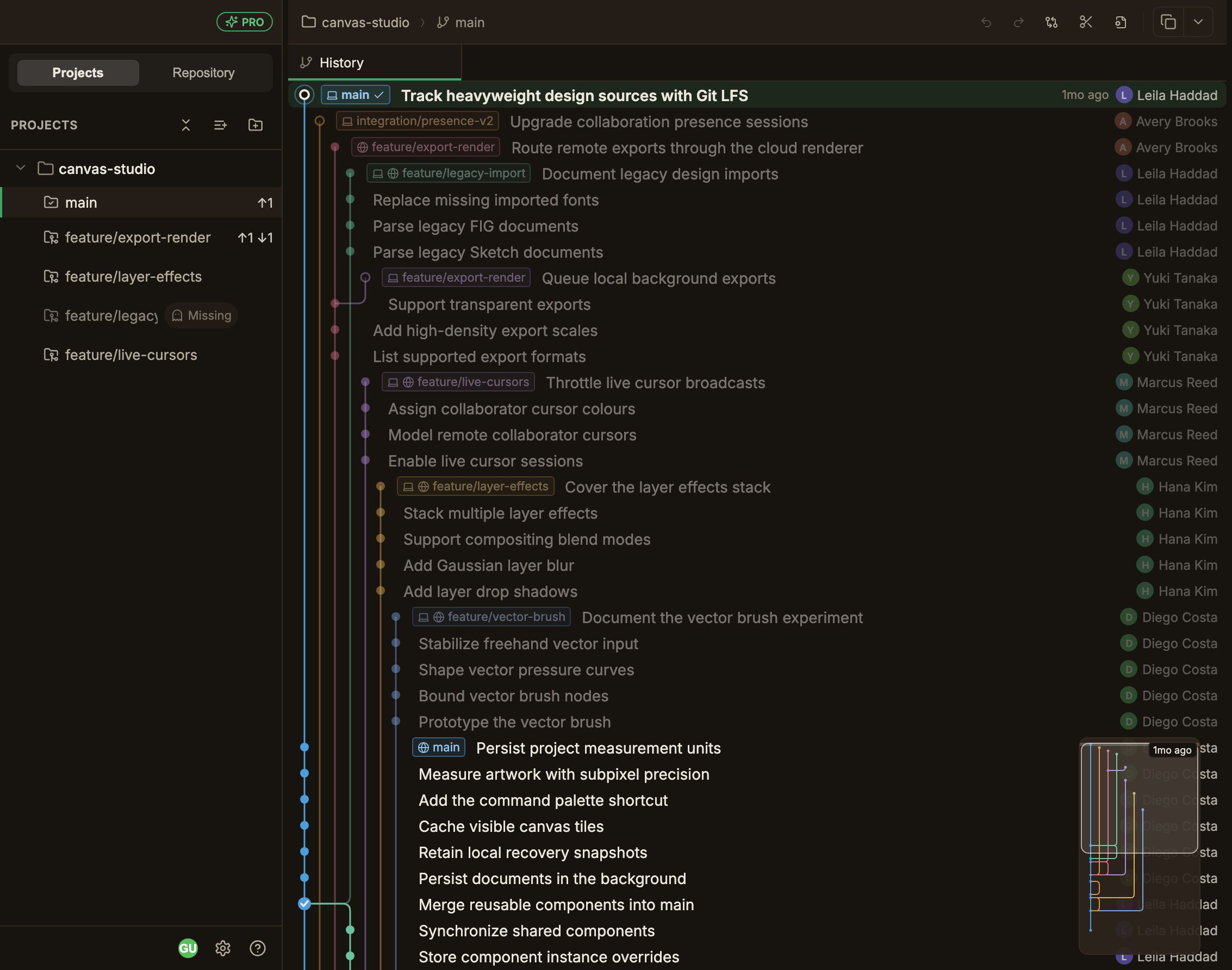
- Worktrees are shown directly in the sidebar, listed under each repository. The main worktree has a folder-check icon and linked worktrees have a Git folder icon; each row shows the checked-out branch and its ahead/behind count. Clicking a row switches to it.
- Each worktree keeps independent state, meaning its own commit graph cache, repository overview, and Working copy state. Per-worktree state covers the exact rules.
- The top bar breadcrumb shows your current location as
Repository ⟩ Worktree ⟩ Branchwhen you are viewing a linked worktree.
What this group covers
Create, switch, and delete worktrees
How to create, switch, and safely delete them.
Per-worktree state
Status indicators, independent graphs and tabs, and sidebar conventions.
Branches in use & cleanup
Handling branches in use, and pruning invalid worktrees.
Checkout
Switching branches and other basics.