
Double-click to check out from the graph
What you double-click determines the target. One chip covers every place a branch lives.feature is a single chip whether it exists locally, on origin, or on both.
- Branch chip with a laptop icon → that local branch
- Branch chip without one → a new local branch is created tracking
origin, or the first remote in name order if the branch isn’t onorigin - Tag chip → that tag (detached HEAD)
- Commit body → automatically picks, in order, local
main/master→ other local branches → a remote branch → a tag; if no ref matches, it checks out detached at the commit SHA
A single click only selects; switching happens on double-click.
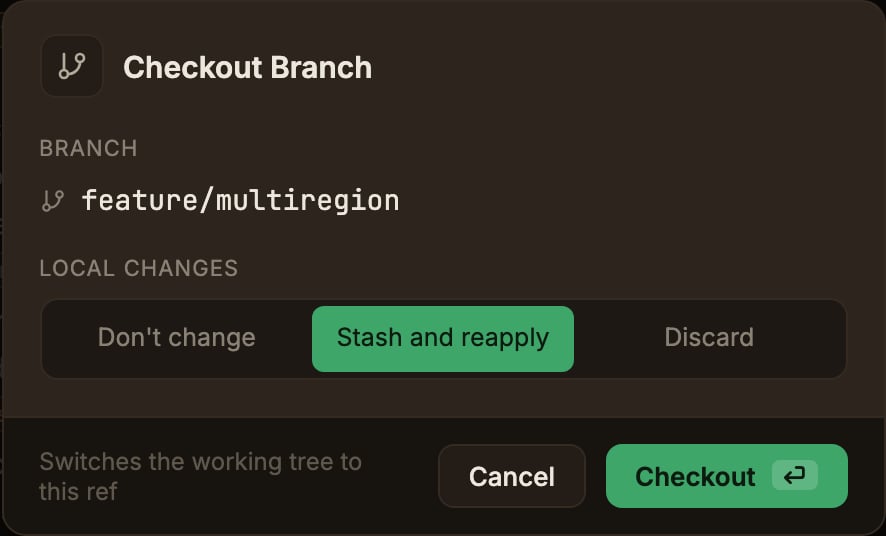
Checkout modal (handling local changes)
If the working tree is clean, it switches immediately with no modal. If you have uncommitted changes, choose how to handle them.Don't change
Leaves your changes in place and switches to the target.
Git blocks the switch if that would cause a conflict.
Stash and reapply
Stashes your changes, switches, then reapplies the stash.
This is the default.
Discard
Discards your changes and switches.
This cannot be undone.
Automatic fast-forward pull on checkout
When you check out a local branch that tracks an upstream, it fast-forwards to match the remote in the background right after the switch.- The checkout finishes immediately, and the pull runs afterward.
- If a fast-forward isn’t possible or the network or authentication fails, it leaves the branch untouched and only shows a warning toast. It never creates a merge or a conflict.
You can also trigger it on demand: double-click the
<remote>/<branch> row of the branch you already have checked out, under Remote Branches in the Repository panel.
With nothing to switch to, it runs this fast-forward pull from that remote (regardless of the toggle).
It’s skipped with a notification when the working tree has changes to tracked files, which a fast-forward would move along with HEAD.
Untracked files (a stray build output, say) don’t block it.When local and remote have each moved on, a fast-forward isn’t possible, and the message says so and points you at Pull to choose merge or rebase.
A branch another worktree is using
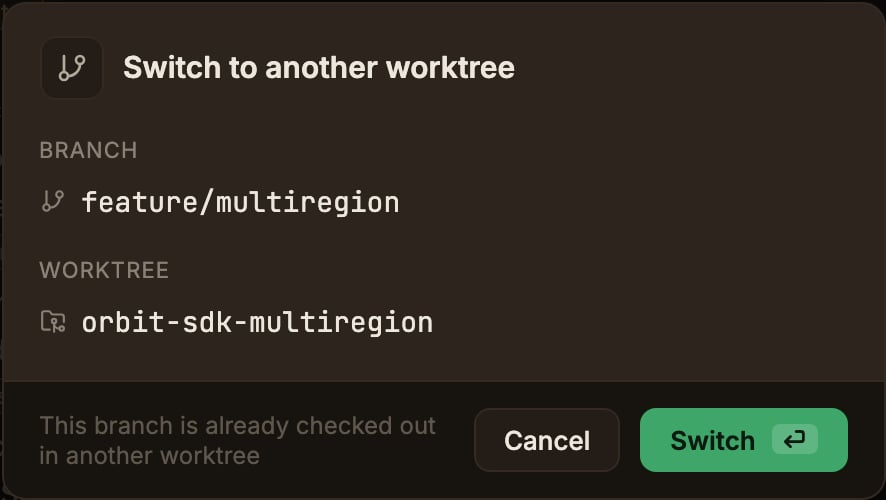
Git won’t let two worktrees use the same branch at the same time. In that case, a Switch to another worktree confirmation modal appears, showing the target branch and the worktree that has it checked out; click Switch to move to that worktree. It doesn’t touch the current worktree. It isn’t recorded in Undo either.