
ParalleLane does not install the git-lfs binary.
git-lfs must already be installed on your system; ParalleLane handles initialization (
git lfs install) and status display.Diagnosing LFS status and initializing
Check the status in the Git LFS row near the bottom of Settings → ParalleLane → Git.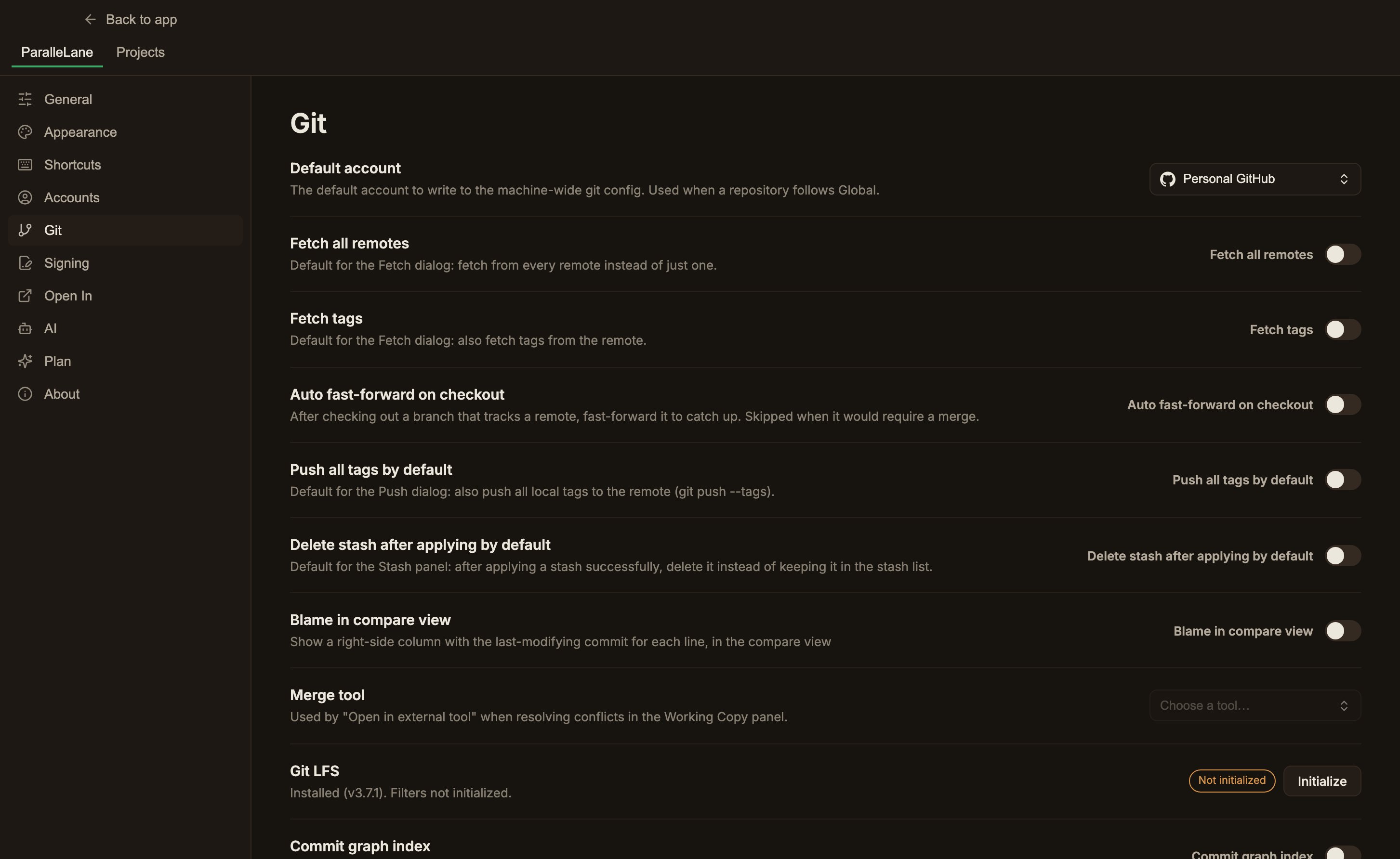
Diagnosis and initialization are both machine-wide. You don’t need to initialize LFS separately for each repository.
In an environment without git-lfs, only the
Not installed badge appears, and the LFS section and its badges don’t show elsewhere either.LFS files in a diff
- Downloaded files display the actual file content (text diff, image preview) normally.
- Not downloaded files show a Git LFS object card in place of the diff, displaying the file name and size. Use the card’s Download button to download that one file.
The repository’s LFS inventory
Check the LFS file list in the Git LFS section of the Repository tab on the left (it only appears when there is at least one file). Each row shows the file name, size, and whether it has been downloaded; the list shows up to 100 files, with… and N more appended when there are more.
Use the section header’s Download missing button to download every file that hasn’t been downloaded yet.
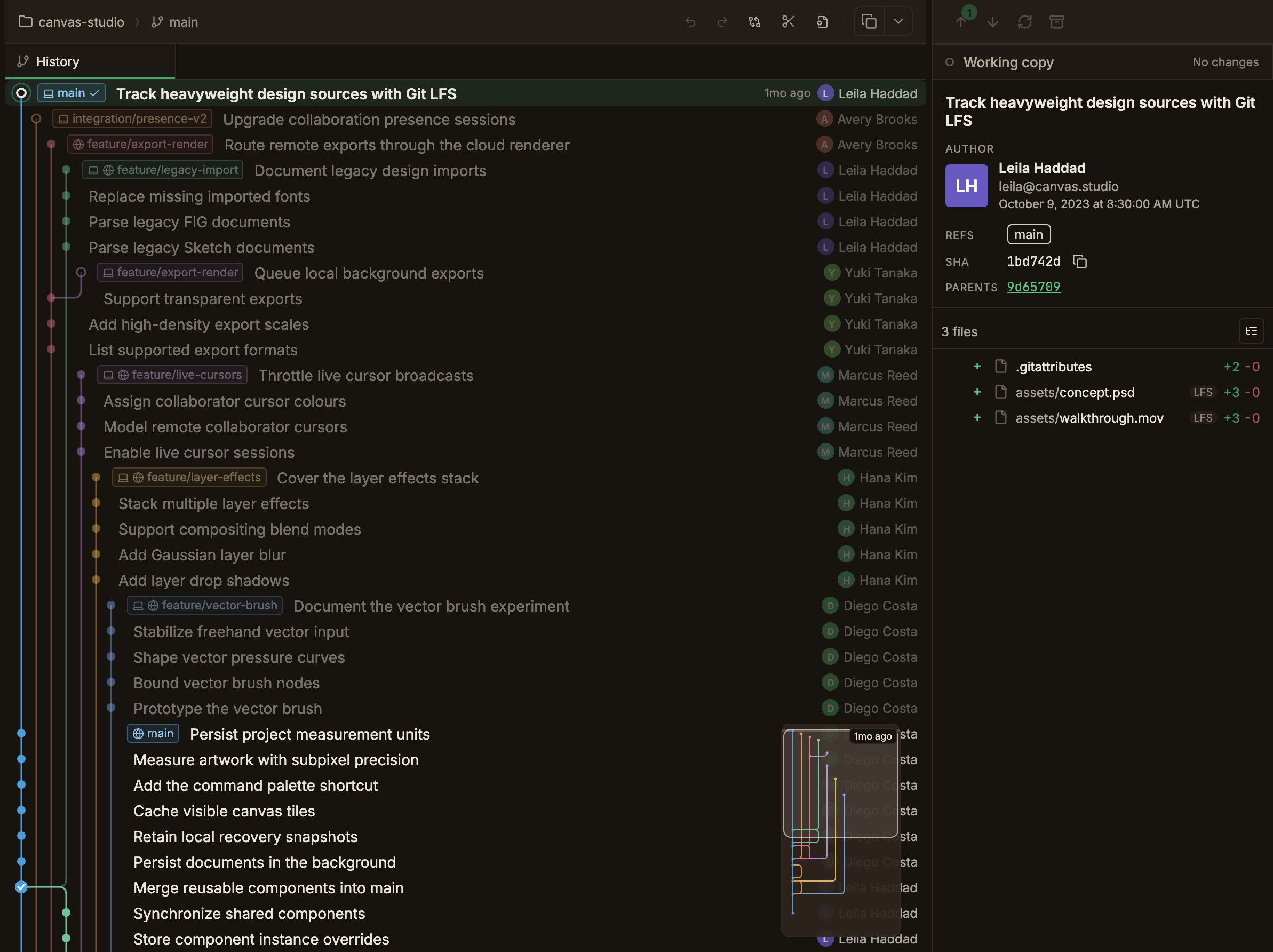
The LFS badge
- Changed file lists show an LFS badge to the right of the file path in commit details or the Working copy panel.
- Project sidebar shows the badge on the row of any repository whose
.gitattributeshas an LFS tracking rule (filter=lfs). The same is true for a submodule row that has been registered as a child repository, covered in Submodules.