> ## Documentation Index
> Fetch the complete documentation index at: https://docs.parallelane.com/llms.txt
> Use this file to discover all available pages before exploring further.
# Smart groups
> Collecting branches and tags into groups by glob pattern
**PRO only:** a group's **This repo** scope is a Pro feature.
The **Global** scope is [available on every plan](/quickstart#plans).
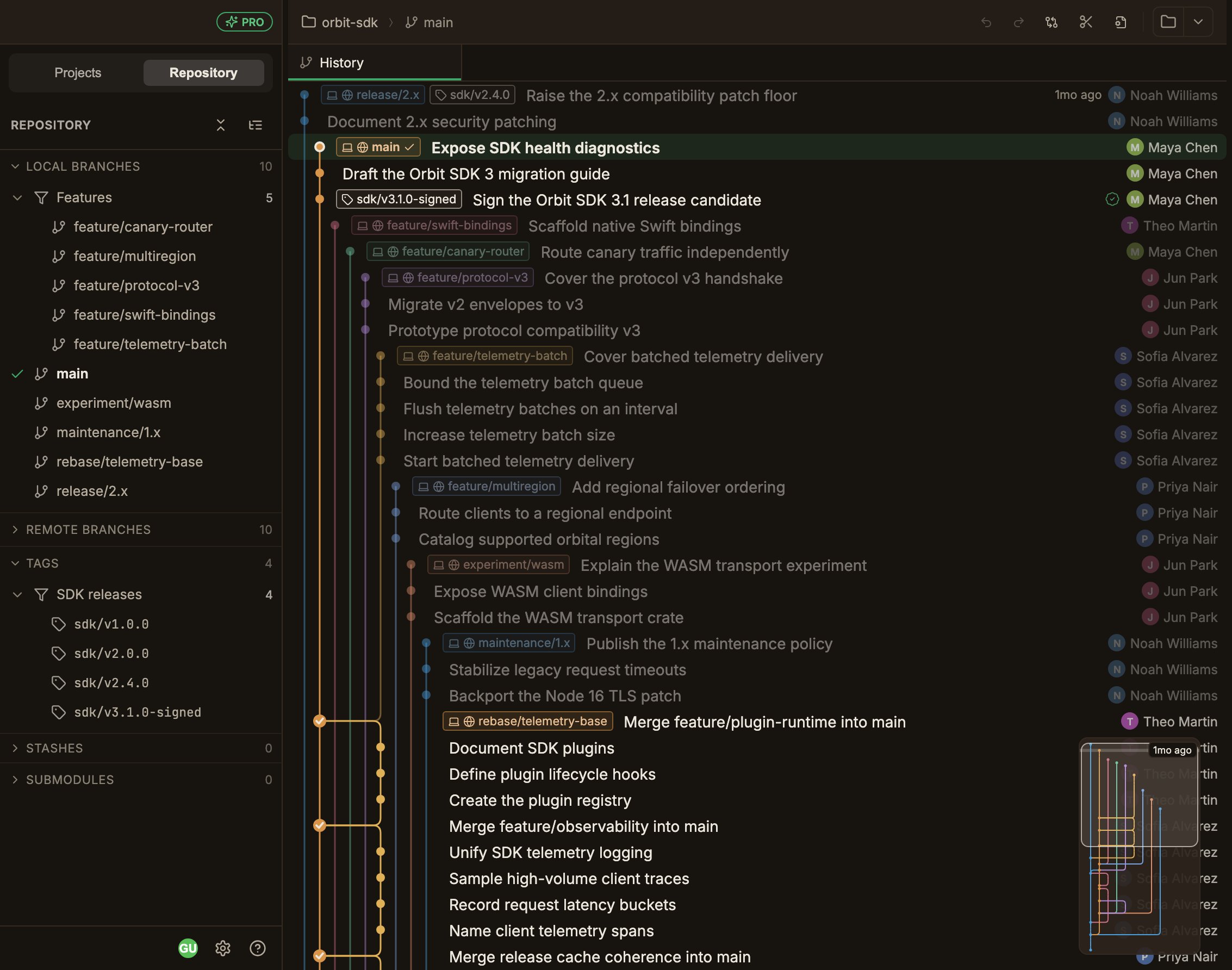
A **smart group** automatically collects refs whose names match a pattern.
Once you set the pattern, refs created later fall into the group automatically too.
In the **Repository** panel, the **Local Branches**, **Remote Branches**, and **Tags** sections each keep their own independent list of groups.
Groups are purely for organizing the display, and they're stored only inside the app.
They have no effect on the git repository or the remote.
 ## Creating a group
Click the **+** button (**New group**) that appears when you hover over the section header.
If there's already at least one group, a gear button (**Manage groups**) also appears to its left.
These buttons only show up when you hover over the section header.
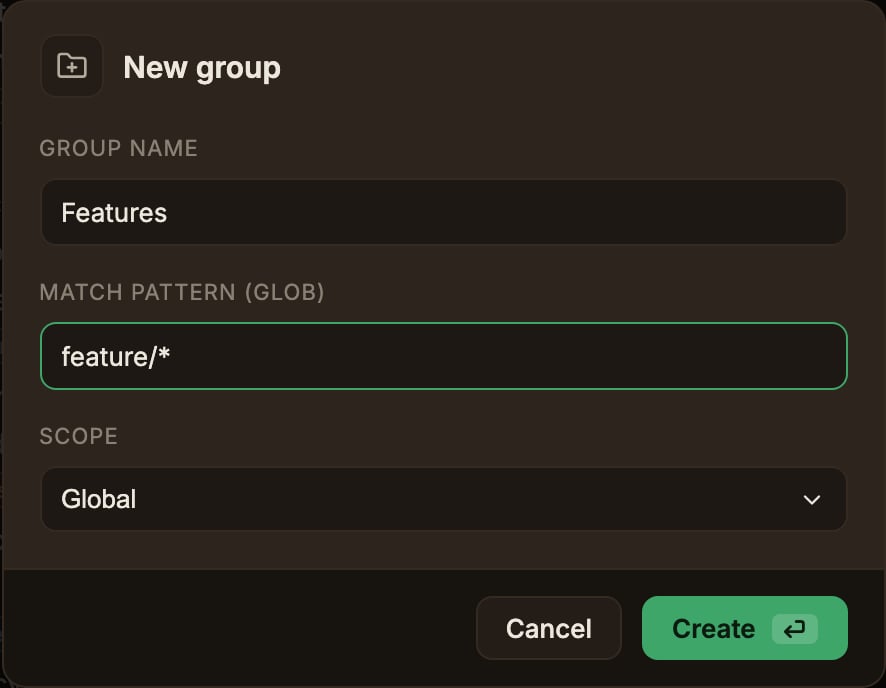
Enter a **Group name** (e.g. `Releases`) and a **Match pattern (glob)** (e.g. `release/*`).
In **Scope**, **Global (default)** applies to every repository, and **This repo** applies only to the current one.
Click **Create** and refs matching the pattern are collected immediately.
## Creating a group
Click the **+** button (**New group**) that appears when you hover over the section header.
If there's already at least one group, a gear button (**Manage groups**) also appears to its left.
These buttons only show up when you hover over the section header.
Enter a **Group name** (e.g. `Releases`) and a **Match pattern (glob)** (e.g. `release/*`).
In **Scope**, **Global (default)** applies to every repository, and **This repo** applies only to the current one.
Click **Create** and refs matching the pattern are collected immediately.
 ## Match pattern (glob)
The pattern must **match the ref's name in full**, and matching is case-insensitive.
`*` matches a string of any length (including `/`), and `?` matches a single character.
What gets compared differs by section.
* **Local Branches** compares the branch name (`feature/login`)
* **Remote Branches** compares the full name including the remote (`origin/feature/login`)
* **Tags** compares the tag name (`v1.2.0`)
In the Remote Branches section, the pattern has to include the remote. Write it as `*/feature/*` or `origin/feature/*` for it to match.
A ref belongs to only one group.
If it matches multiple patterns, the first group checked wins, in the order **this-repo-only groups → global groups**; within the same scope, list order applies.
Placing narrower patterns higher up makes the outcome easier to predict.
A ref that matches no group stays in its original place.
## Working with groups
* A group header shows a collapse arrow, the group name, and the number of matches.
Click the header to collapse or expand it.
* Right-clicking the header opens a menu with **Edit group… / Move up / Move down / Delete**.
Editing lets you change the name, pattern, and scope, all at once.
* Clicking **Manage groups** in the section header lets you reorder, edit, or delete every group in that section from one screen.
Reordering only moves groups within the same scope.
* A group with zero matches keeps showing a count of 0.
Group **Delete** happens with no confirmation step.
Only the group disappears. The branches and tags return to the original list.
## Match pattern (glob)
The pattern must **match the ref's name in full**, and matching is case-insensitive.
`*` matches a string of any length (including `/`), and `?` matches a single character.
What gets compared differs by section.
* **Local Branches** compares the branch name (`feature/login`)
* **Remote Branches** compares the full name including the remote (`origin/feature/login`)
* **Tags** compares the tag name (`v1.2.0`)
In the Remote Branches section, the pattern has to include the remote. Write it as `*/feature/*` or `origin/feature/*` for it to match.
A ref belongs to only one group.
If it matches multiple patterns, the first group checked wins, in the order **this-repo-only groups → global groups**; within the same scope, list order applies.
Placing narrower patterns higher up makes the outcome easier to predict.
A ref that matches no group stays in its original place.
## Working with groups
* A group header shows a collapse arrow, the group name, and the number of matches.
Click the header to collapse or expand it.
* Right-clicking the header opens a menu with **Edit group… / Move up / Move down / Delete**.
Editing lets you change the name, pattern, and scope, all at once.
* Clicking **Manage groups** in the section header lets you reorder, edit, or delete every group in that section from one screen.
Reordering only moves groups within the same scope.
* A group with zero matches keeps showing a count of 0.
Group **Delete** happens with no confirmation step.
Only the group disappears. The branches and tags return to the original list.